Disclaimer: This blog post was generated using AI. I’ve been lazy but wanted to share the nuances I faced while building this project — so even though it’s AI-generated, the content is real and I hope it’s insightful. Despite my best prompting to keep the tone light and technical, I think it went a little overboard and sassy. Still, I think it did a great job summarising my experience!
You know that feeling when you stumble upon a golden repository on GitHub? The kind that makes you go “Oh, this is exactly what we need for that thing!” — and then you do the usual dance: copy the URL, switch to Slack (or Discord, or wherever your team lives), paste it, add some context, and hope someone sees it before it gets buried. Rinse and repeat.
I’ve done this dance countless times, and frankly, it started feeling like friction. What if I could just star a repo and instantly share it with someone? That’s the idea behind StarShare — a Chrome extension that turns the humble GitHub star into a collaborative gesture.
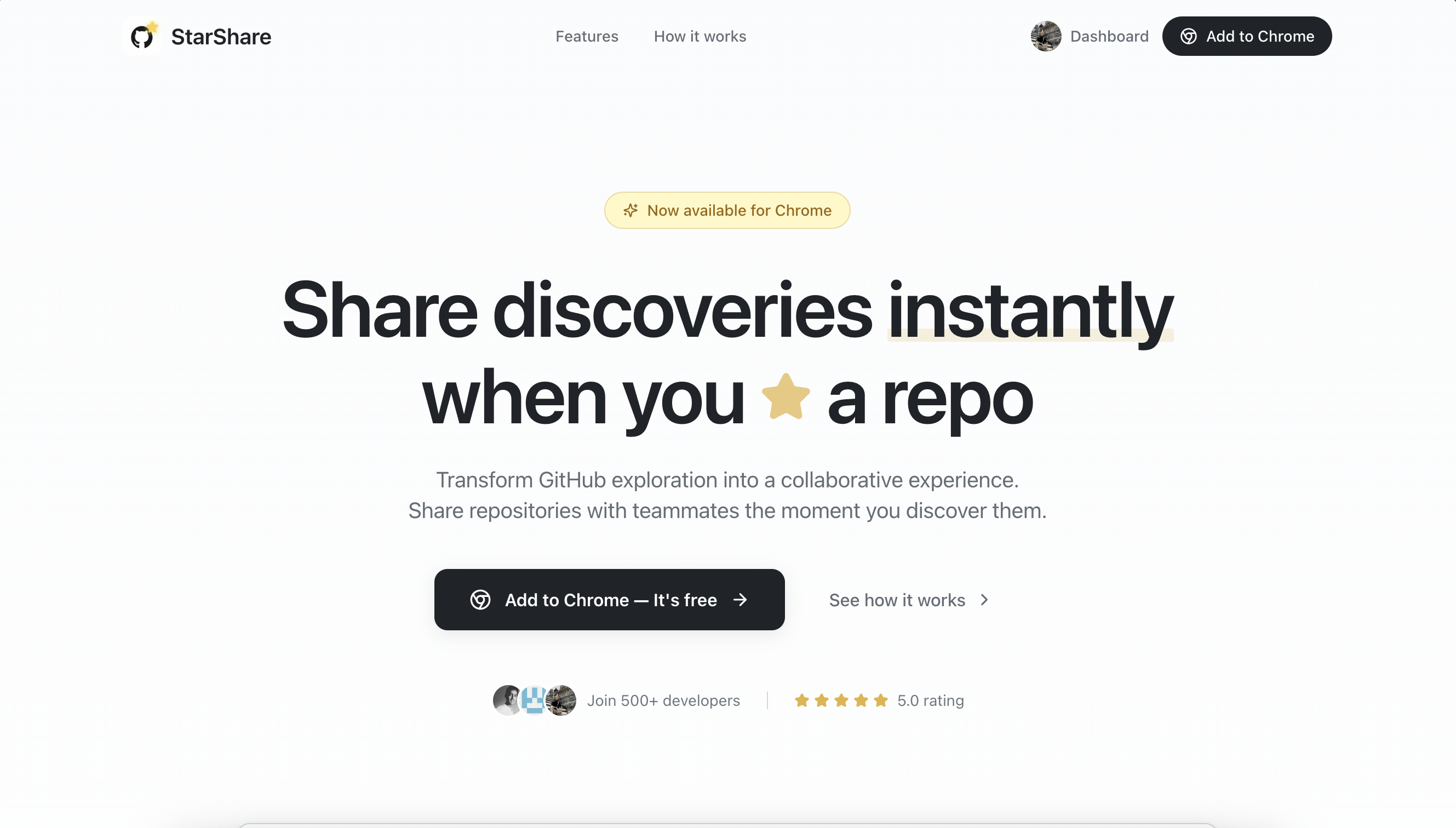
Check out the extension here and the Chrome Web Store listing. Feel free to install and share repos with your teammates!
The Spark
The core premise is simple: when you star a repository on GitHub, a sleek sidebar slides in, letting you search for a GitHub user and share the repo with an optional note. They get a real-time browser notification, and boom — discovery shared, context preserved, flow uninterrupted.
Spinning Up the Monorepo
I’ve heard about WXT for a while now — a modern framework for building browser extensions with a great DX. This seemed like the perfect excuse to finally try it out. I spun up a Bun monorepo with three packages:
extension— the Chrome extension, built with WXT + Reactbackend— a Hono server with PostgreSQL (Supabase)frontend— a Next.js landing page
Cursor was my companion throughout, and I leaned heavily on Claude Opus 4.5 for the complicated stuff. For faster, more repetitive tasks, I switched to auto mode. The combo worked surprisingly well — Opus for architectural decisions and tricky integrations, auto for churning out boilerplate.
The OAuth Ordeal
Setting up GitHub OAuth with better-auth seemed straightforward at first. I followed their browser extension guide, which looked clean and well-documented.
The guide suggested using authClient.signIn.social({ provider: "github" }) to kick off the OAuth flow. Sounds elegant, right? Except… it didn’t work. The OAuth link simply wouldn’t open in the extension context. After a few hours of debugging (and questioning my sanity), I realized their advertised method was designed for credential-based flows, not social login from an extension popup.
So I went old school. I used better-auth’s openAPI plugin to discover available endpoints, then made a manual POST request to /api/auth/sign-in/social:
export async function signInSocial(): Promise<{
  url: string
  redirect: boolean
}> {
  return fetchApi("/api/auth/sign-in/social", {
    method: "POST",
    body: JSON.stringify({
      provider: "github",
      callbackURL: AuthSuccessCallbackUrl,
      errorCallbackURL: AuthFailureCallbackUrl,
    }),
  })
}
When I got the OAuth URL back, I opened it in a new Chrome tab, tracked the tab ID, listened for the callback, grabbed the cookies, and closed the tab automatically. Not the prettiest dance, but it worked.
chrome.runtime.onMessage.addListener((message, _sender, sendResponse) => {
  if (message.type === "OPEN_GITHUB_AUTH") {
    const { url } = message
    if (url) {
      chrome.tabs.create({ url }).then((tab) => {
        oauthCallbackTabId = tab.id || null
        oauthCallbackProcessed = false
      })
    }
    sendResponse({ success: true })
    return true
  }
  // ...
})
One-Shotting the UI
Here’s where things got fun. I wanted the extension to feel native to GitHub — same typography, same colors, same vibe. I described what I wanted to Claude Opus 4.5, and it basically one-shotted the entire sidebar UI. GitHub-style theme, smooth animations, proper dark mode support. I was genuinely impressed.
The sidebar slides in when you star a repo, lets you search for users, add a note, and hit share. Simple, clean, and exactly what I imagined.
WebSocket Woes (and the Bun-Hono-Socket.IO Triangle)
The backend was relatively straightforward — Hono for routing, Drizzle for ORM, Supabase for PostgreSQL. But I also needed WebSocket support for real-time notifications. “How hard can Socket.IO with Bun be?” I thought.
Turns out, AI couldn’t figure this one out either. Every attempt at integrating Socket.IO with Bun and Hono ended in some cryptic error or another. After some digging, I found a GitHub discussion that saved the day. The solution involves using @socket.io/bun-engine — a low-level engine specifically built for Bun:
import { Server as Engine } from "@socket.io/bun-engine"
import { Server } from "socket.io"
import { Hono } from "hono"

const io = new Server()
const engine = new Engine()

io.bind(engine)

io.on("connection", (socket) => {
  // ...
})

const app = new Hono()
const { websocket } = engine.handler()

export default {
  port: 3000,
  idleTimeout: 30, // must be greater than pingInterval (default 25s)

  fetch(req, server) {
    const url = new URL(req.url)

    if (url.pathname === "/socket.io/") {
      return engine.handleRequest(req, server)
    } else {
      return app.fetch(req, server)
    }
  },

  websocket,
}
This pattern of checking the pathname and routing accordingly finally got everything working. Real-time notifications — done.
The Arc Browser Plot Twist
I wanted the extension to open as a side panel — it felt more natural than a popup for this use case. And it worked beautifully… in Chrome. But when I tried clicking the extension icon in Arc, nothing happened.
Turns out, Arc doesn’t support the sidePanel API. Great.
I could’ve just given up on Arc users, but I’m stubborn. After scouring Reddit and abandoned Stack Overflow threads (here and here), I pieced together a workaround. The trick is to detect whether the side panel actually opened by checking runtime contexts:
let isSupportSidePanel: boolean | undefined

chrome.action.onClicked.addListener((tab: chrome.tabs.Tab) => {
  if (isSupportSidePanel === undefined) {
    chrome.sidePanel.open({ windowId: tab.windowId }).then(async () => {
      setTimeout(async () => {
        const contexts = await chrome.runtime.getContexts({
          contextTypes: ["SIDE_PANEL" as chrome.runtime.ContextType],
        })
        if (contexts.length > 0) {
          chrome.sidePanel.setPanelBehavior({ openPanelOnActionClick: true })
          isSupportSidePanel = true
        } else {
          // Fallback to popup for Arc
          chrome.action.setPopup({ popup: "conditional_popup.html" })
          chrome.action.openPopup()
          isSupportSidePanel = false
        }
      }, 300)
    })
  } else if (isSupportSidePanel === false) {
    chrome.action.setPopup({ popup: "conditional_popup.html" })
    chrome.action.openPopup()
  }
})
Now the extension dynamically shows a popup on Arc and a side panel on Chrome. Best of both worlds.
The Landing Page Sprint
With the extension working, I needed a landing page. I created a frontend package in the monorepo, found some Chrome extension landing pages I liked on Dribbble, and let AI handle the rest. One prompt, some minor tweaks, and I had a polished landing page with hero section, feature cards, and a how-it-works flow.
The SameSite Cookie Gotcha
Here’s a fun one. Both the frontend dashboard (which shows sent/received shares) and the extension use GitHub OAuth via better-auth. Everything worked perfectly when all three pieces — backend, frontend, and extension — were running on localhost. But when I deployed to production, the frontend auth started failing, even though the extension was authenticating just fine.
After some head-scratching, I traced it back to cookie attributes. The default SameSite: Lax policy was preventing the session cookies from being sent in cross-origin requests in production. The fix was straightforward — set SameSite: None and Secure: true in better-auth’s advanced configuration:
advanced: {
  cookies: {
    state: {
      attributes: {
        sameSite: "none",
        secure: true,
      },
    },
    session_token: {
      attributes: {
        sameSite: "none",
        secure: true,
      },
    },
  },
}
One of those classic “works on localhost” moments that reminds you why testing in production-like environments matters.
Publishing: The Final Boss
Ah, the Chrome Web Store. A few things to note:
- $5 one-time developer fee — Indian cards don’t always cooperate with Google payments. Fun times.
- Privacy Policy and Support pages — mandatory for review. Quick additions to the frontend.
- Promotional images — Chrome has very strict dimension requirements. You need:
- Small promo tile: 440 x 280 pixels
- Large promo tile: 920 x 680 pixels
- Marquee promo tile: 1400 x 560 pixels
- Screenshots: 1280 x 800 or 640 x 400 pixels
Creating these images in the exact dimensions was more annoying than I expected. But after a few rounds in Figma, I had everything ready.
I submitted the extension, and got rejected once for a redundant permission in the manifest. Removed it, resubmitted, and StarShare was live 🎉
Wrapping Up
Building StarShare was a fun ride — from WXT’s excellent DX to better-auth’s documentation gaps, from Socket.IO wrestling to Arc’s sidePanel shenanigans. Each hurdle taught me something new, and the end result is something I’m genuinely proud of.
If you’ve ever wanted to share GitHub discoveries without breaking your flow, give StarShare a try. And if you’re building a Chrome extension yourself, I hope some of these learnings save you a few hours of debugging.
Till next time!